The Workout page is where you spend your time at the gym. It always opens on today, and the whole loop is: pick a move, type what you did, save.
The date header
The date at the top is the day you are logging. The arrows beside it do not step one day at a time — they jump to your previous or next day that actually has a workout, so you can skip through your training history quickly.
Under it are three buttons:
- Calendar — opens a month view. Days with a workout or a memo are highlighted.
- The arrow in the middle — shows whether the day was a net improvement. Tap it for a 20-day graph.
- Memo — a note for the whole day. It saves by itself when you tap outside the field, and shows a tick once the day has one.
Rest timer
The round button in the bottom corner is a countdown for the rest between your sets. It is on every page, so it does not matter where you are when you need it. Tap it for the controls: pick a length — 60 / 90 / 120 / 180 seconds, or nudge it with the −15 s and +15 s buttons — and press Start.
Reset stops the countdown and puts it back to the start. The length you chose is remembered for next time.
Once it is running the button shows the time left. Jump to another day, wander off to your memos or reload the browser and it keeps counting, so you can go on using the app while you rest.
When time is up a message pops up on screen, the timer beeps and your phone vibrates. The small icons in the corner of the panel switch the sound and the vibration on and off separately — turn both off and you still get the message and a red bell on the button. The choices are remembered on that device, so your phone and your computer can differ.
The bell icon turns on notifications, so the alarm reaches you even after you have switched to another app. Your browser will ask permission the first time. On an iPhone this only works if you have added Salivihko to your home screen.
One honest warning: once the phone has been locked for a while, browsers put the page to sleep and the alarm may come late or not at all. If the rest really matters, leave Salivihko on the screen.
1. Pick a move
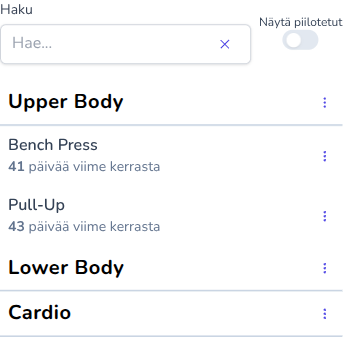
Press the big Select move button to open the move selector. Once a move is chosen, the button shows its name instead.
The selector helps you choose:
- Filter by a workout day to only see the moves in that routine. Your choice is remembered for next time.
- If you have set up gyms, pick the one you are at and the list narrows to its machines.
- Each move shows how long it has been since you last did it.
- Hidden moves stay out of the way until you switch them on.
2. Type your sets
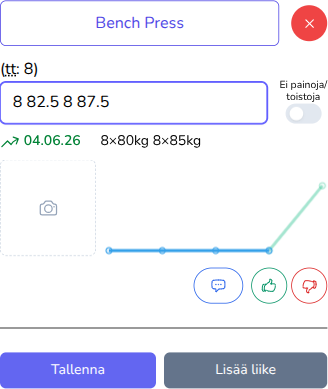
You get one input field per series of the move, each labelled with its reps goal (rg: 8). How you fill it in depends on the move:
To begin with: reps and weights
The field reads "reps weights reps weights...". Each set is a pair — how many reps, then the weight. Two sets of eight at 80 and 85 kg is 8 80 8 85.
Faster: only the weights
On your account page you can choose to default to the reps goal. The field then reads "weights weights weights..." and you type only the weight of each set — the reps are assumed to be your goal, which is most of the typing gone.
On the sets where the reps were different, press "edit reps". The field switches back to reps and weights and fills in your goal reps for you, so you only correct what changed.
Bodyweight moves: No weights/reps
Flip the toggle beside the field and it becomes "reps reps reps...". Three sets of ten is simply 10 10 10.
Aerobic moves
If the move is marked aerobic, you get a time picker instead of a text field, so you can log seconds or minutes rather than weight.
How to write the numbers
Separators do not matter. All of these mean the same two sets of ten reps at 40 kg:
For decimals you can use either a comma or a full stop.
What you see while typing
Beside each field are two dates: your best result for that move in green, and your previous one. Both are links — tap one to jump to that day and see the whole workout.
The graph updates on every keystroke, so you can see where the set you are about to save lands before you save it.
3. Memo and feeling
Each move has its own memo field and a feeling toggle — good, neutral or bad. This memo belongs to the single move, unlike the day memo at the top of the page.
If you wrote something the last time you did that move, a button appears to show it, so you can read what you told yourself before you start the set.
If you only marked a feeling last time, its thumb shows right there instead.
Your latest marked feelings are collected on the dashboard, memos and all.
4. Save
Press "Save" to store the move. Press "Add move" first if you want to log several moves at once.
When you save a single move, Salivihko tells you how it went:
- Best Ever! — a new record for that move.
- Same as best! — you matched your record.
- Better than previous! — better than last time, but not a record.
- Good effort — below your best. You still showed up.
Saving several moves at once just says "Saved", without a verdict for each one.
Your typing is never lost
Everything you type is saved as a draft for that day as you go. If your phone locks, the browser closes or you lose signal mid-set, the moves and numbers are still there when you come back.
The draft is not a saved workout, though — it only becomes part of your history once you press "Save".
Fixing a workout you already saved
Saved moves are listed under the form. Open one to edit it and you can do two things the logging form does not offer: change its date, and move it to a different machine if you logged it against the wrong one.
The machine is picked with the same move selector as the logging form, so you can search and filter it the same way.
Switching between a timed move and a weights move clears what you entered, because a time is not a set of weights.
Edits are also kept as you type. If you reopen a workout and find unsaved changes waiting, you can restore the original values instead.